
Import Tradovate trades
Step 1: Log in to your Tradovate account.
Step 2: Open the Tradovate desktop platform.
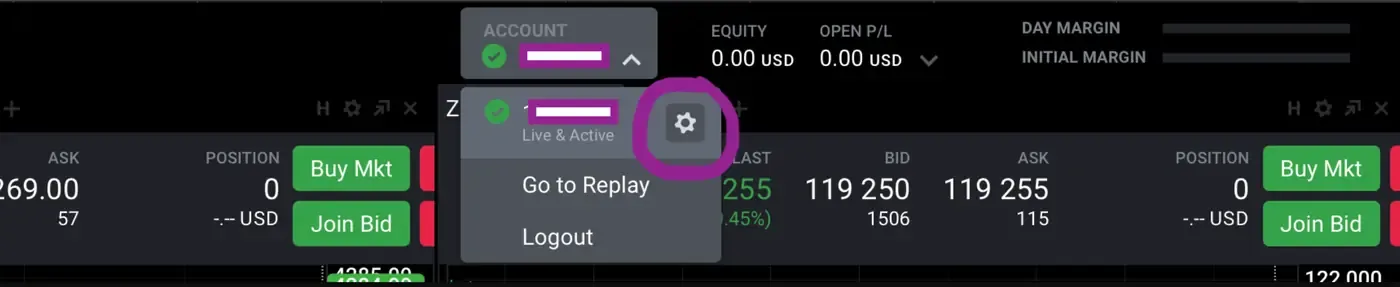
Step 3: Click on the ACCOUNTS tab in the upper panel and choose the account for which you want to export trades.
Step 4: Next to the selected account, click on the gear/settings icon.
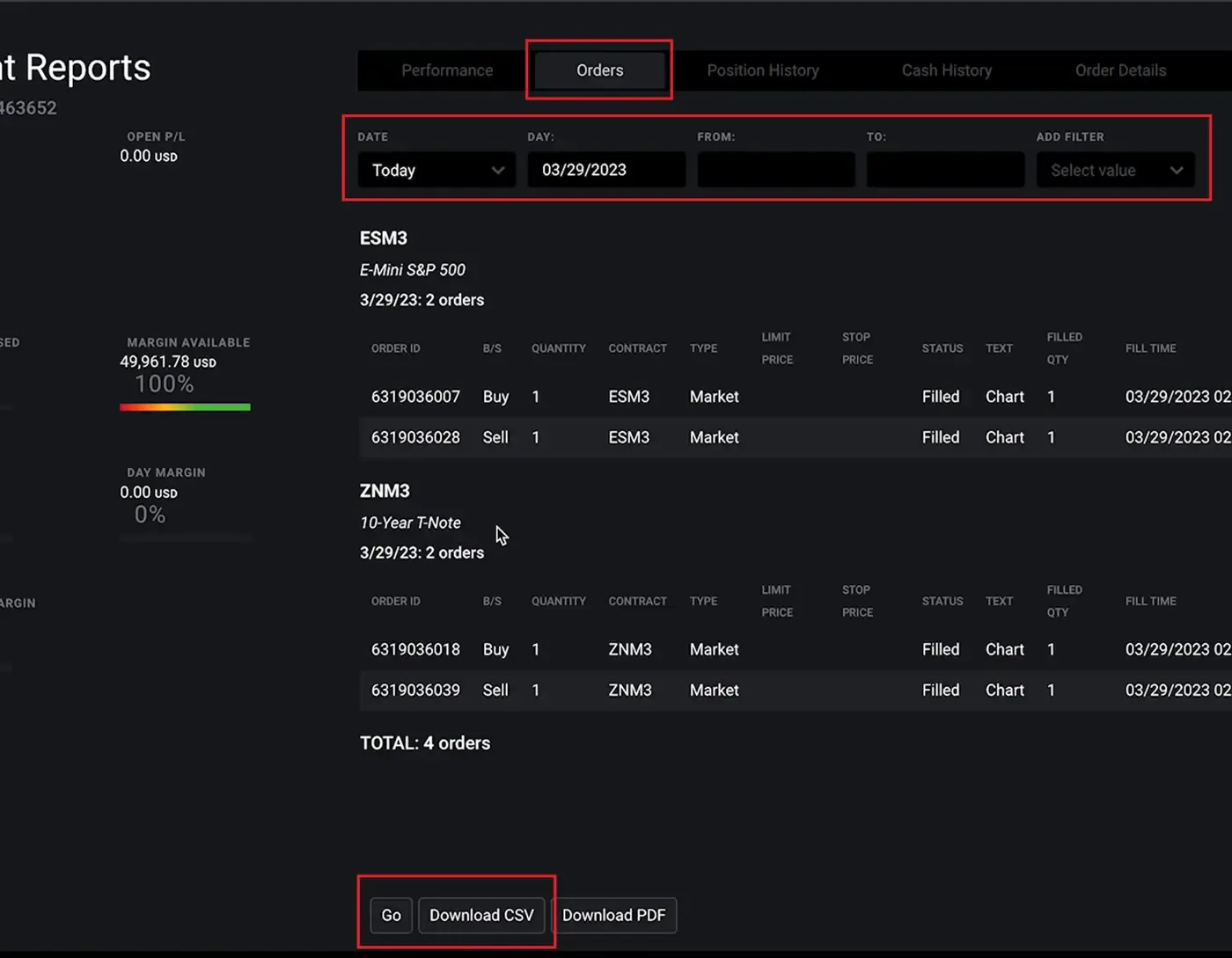
Step 5: On the settings page, click on the ORDERS tab.
Step 6: Enter the dates you wish to export and click Go.
Step 7: Click Download Report to save the file to your computer.
Uploading the exported file into TradeReview
Section titled “Uploading the exported file into TradeReview”- Visit the TradeReview import page here or by clicking the ”+” button on the sidebar.
2. Select Your Account
Section titled “2. Select Your Account”- Select the account to which you want to import trades