
Import TradingView trades
TradeReview supports importing TradingView paper trading order history for:
- Stocks (e.g.
NASDAQ:AAPL) - Options (e.g.
OPRA:SPY251024C669.0) - Crypto (e.g.
BINANCE:BTCUSDT) - Futures (e.g.
CME_MINI:MES1!,CME_MINI:MNQH2026) - Forex (e.g.
FX:EURUSD)
To import your trade data from TradingView into TradeReview, follow the steps mentioned below: Exporting trade data from TradingView into a file
Step 1: Login to your TradingView account and open any chart.
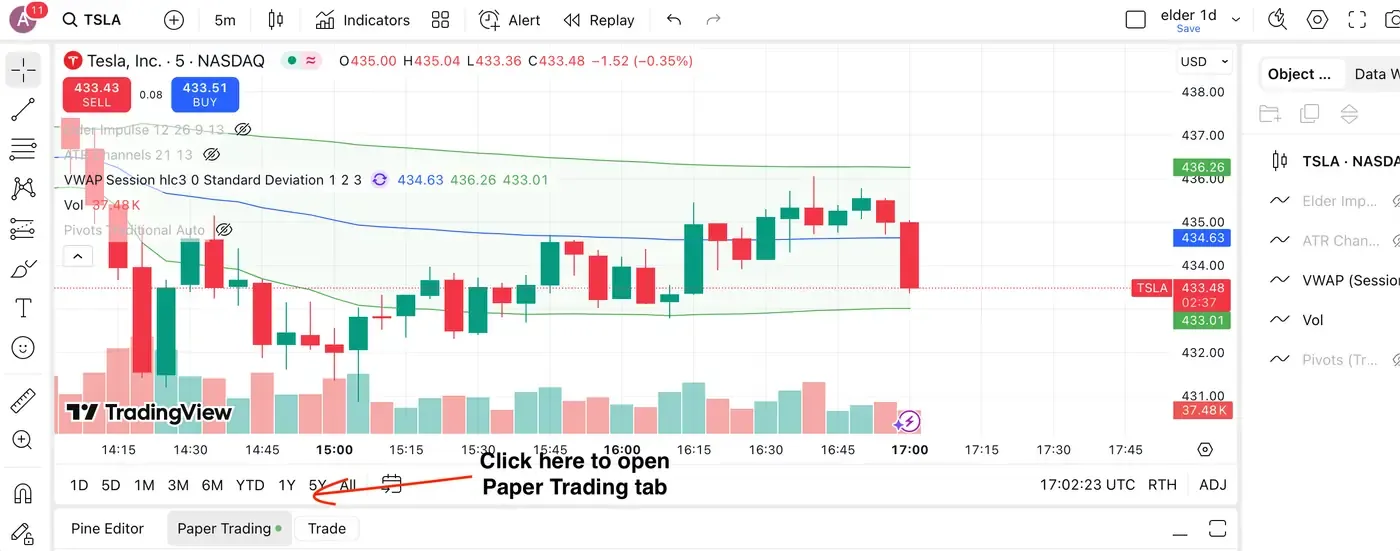
Step 2: At the bottom, click on “Paper trading” or “Live Trading”.
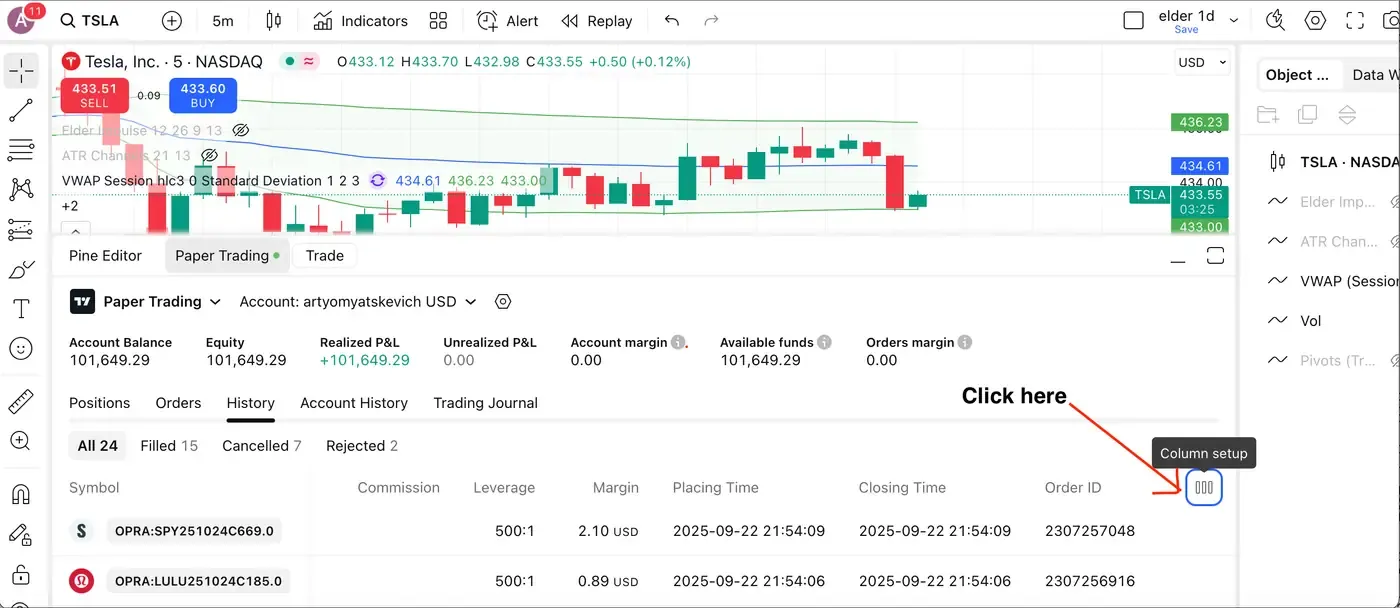
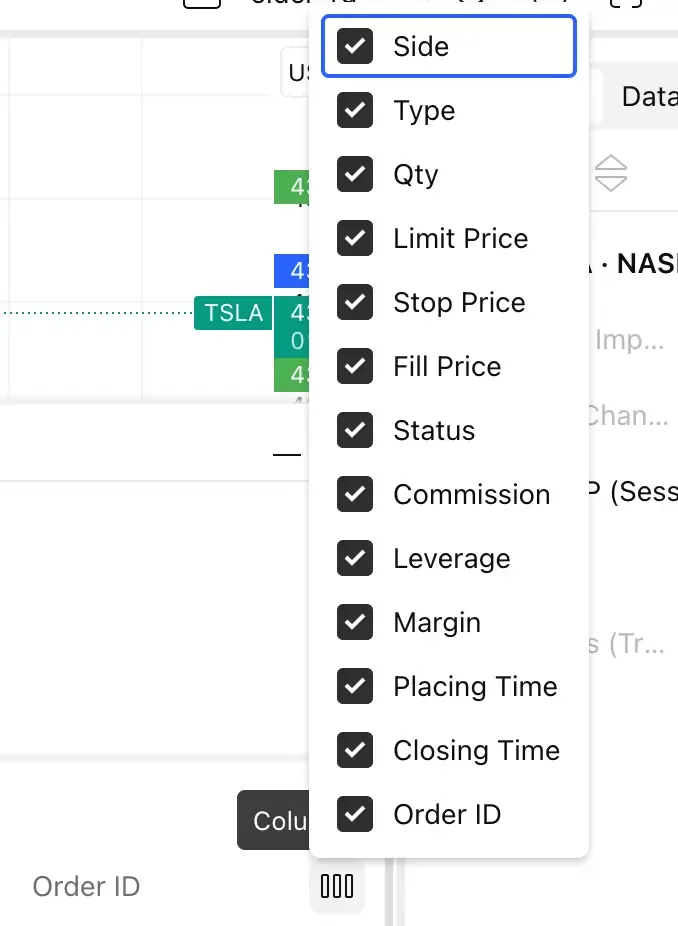
Step 3: On the History tab, on the right-hand side, there are three dots. Click on those three dots, which allow you to select the columns to export. Check all the boxes (Side, Type, Qty, Price, Fill Price, Status, Commission, Closing Time, Order ID).
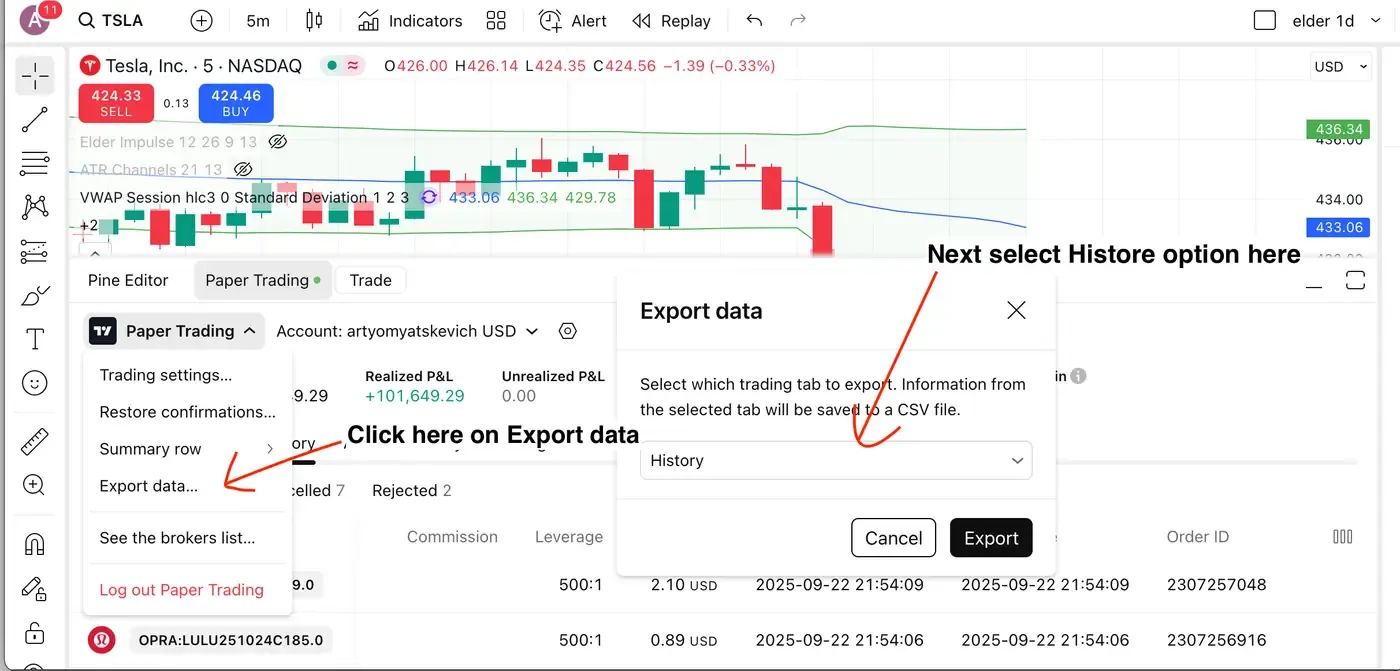
Step 4: Click on the TradingView logo.
Step 5: Select “Export data”
Step 6: Select “History” option and then click “Export”.
IMPORTANT: Please make sure the file is written in English.
A CSV file will be downloaded to your computer.
Uploading the exported file into TradeReview
Section titled “Uploading the exported file into TradeReview”- Visit the TradeReview import page here or by clicking the ”+” button on the sidebar.
2. Select Your Account
Section titled “2. Select Your Account”- Select the account to which you want to import trades